How Google Assistant Can Control Android apps?
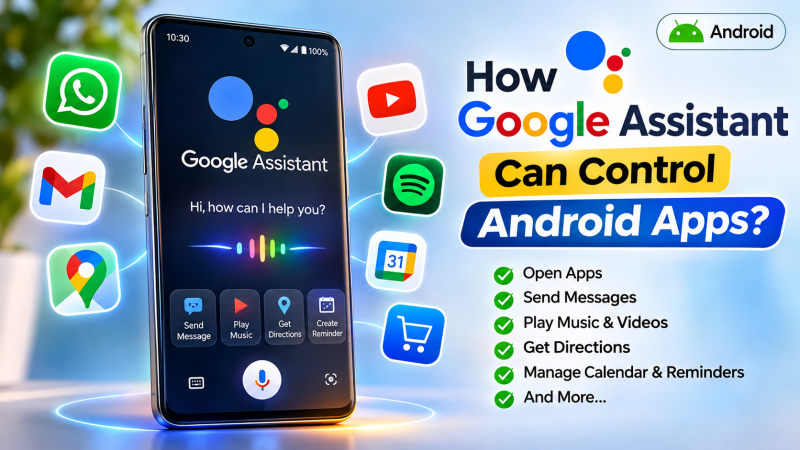
Smartphones have become an essential part of everyday life, helping people communicate, work, shop, navigate and manage their daily activities. However, constantly tapping through menus and switching between applications can sometimes be inconvenient. This is where voice assistants make a difference. Google’s voice assistant technology allows Android users to perform numerous tasks simply by speaking to their phones.
Google Assistant can interact with compatible Android applications, allowing users to send messages, make calls, play music, search for information, navigate to destinations and manage certain app functions without manually opening every application. Instead of typing a search query or scrolling through menus, users can simply say what they want to do.
For example, you can ask Google Assistant to send a WhatsApp message, play a particular song, open YouTube, find directions through Google Maps or check your calendar. Depending on the application, device, language and permissions, the assistant can either perform the action directly or open the relevant app to complete the task.
This guide explains how Google Assistant controls Android apps, which applications support voice commands, how to configure the feature and what users should know about its capabilities and limitations.
What Is Google Assistant?

Google Assistant is Google’s voice-controlled digital assistant designed to help users perform tasks through spoken commands and conversational interactions. It was introduced in 2016 and became available across Android smartphones, smart speakers, smart displays, tablets and other connected devices.
The assistant uses speech recognition and natural language processing to understand what users are asking. It then interprets the request and determines the appropriate action. For instance, if you say, “Call Rahul,” Google Assistant understands that you want to make a phone call. It can search your contacts, identify the relevant person and initiate the call, depending on your settings.
Similarly, saying “Open YouTube” can launch the YouTube application on a compatible Android phone. Google Assistant is not limited to answering questions. It can also interact with supported applications, device settings and connected services.
Some of its common capabilities include:
- Opening and launching Android applications.
- Making phone calls and sending messages.
- Playing music and videos.
- Searching the internet.
- Providing navigation and traffic information.
- Creating reminders and calendar events.
- Controlling compatible smart home devices.
- Checking weather forecasts.
- Managing selected phone settings.
The availability of individual functions depends on the device, Android version, application integration and Google’s current assistant support.
How Google Assistant Can Control Android Apps?
Google Assistant uses several technologies to understand voice commands and connect them with supported applications. When a user speaks a command, the assistant processes the request and identifies the intended action. It then uses available integrations, Android capabilities or supported application features to carry out the task.
For example, consider the command: “Send a WhatsApp message to Amit saying I will arrive in 10 minutes.”
Google Assistant needs to understand three important details:
- The application: WhatsApp.
- The recipient: Amit.
- The message: I will arrive in 10 minutes.
If the necessary integration and permissions are available, the assistant can prepare the message and may ask the user to confirm before sending it.
The process generally involves the following steps:
Step 1: Voice activation: The user activates Google Assistant by saying “Hey Google” or using an available activation method, such as pressing the assistant button.
Step 2: Speech recognition: The assistant converts spoken words into text that it can process.
Step 3: Understanding the request: Natural language processing helps identify the user’s intention, application and requested action.
Step 4: Application integration: Google Assistant checks whether the requested application or service supports the required action.
Step 5: Executing the command: The assistant performs the action, opens the relevant application or asks the user to complete a step manually.
This process makes everyday smartphone interactions more convenient, particularly when users are driving, cooking, exercising or otherwise unable to operate their phones comfortably.
Which Android Apps Can Google Assistant Control?
Google Assistant works with several types of Android applications. The level of control varies depending on whether an application has built-in voice support or provides a deeper integration.
Here are some popular categories and examples of how voice commands can help users.
1. Messaging Apps

Messaging applications are among the most useful services to operate through voice commands. Users can dictate messages instead of typing them manually.
For example, you can try commands such as:
- “Hey Google, send a text message to Rahul.”
- “Hey Google, send a WhatsApp message to Amit.”
- “Hey Google, reply to the message.”
- “Hey Google, call Priya.”
Depending on the app integration and device permissions, Google Assistant may prepare a message, read a notification or ask for confirmation before sending it. Popular messaging services include WhatsApp, Google Messages and other supported communication applications.
Voice messaging is particularly useful when someone is driving, walking or performing another activity that makes typing inconvenient. However, users should follow local hands-free driving laws and avoid interacting with their phones while driving.
2. Music and Audio Streaming Apps

Google Assistant can make listening to music easier by responding to spoken requests. Instead of opening a music application and searching for a song, users can request music directly.
Some examples include:
- “Hey Google, play relaxing music.”
- “Hey Google, play my workout playlist.”
- “Hey Google, pause the music.”
- “Hey Google, play the latest songs by Arijit Singh.”
- “Hey Google, turn up the volume.”
Depending on the available integrations and default music service, Assistant may use YouTube Music or another supported streaming platform. Users can also control playback through compatible headphones, speakers and connected devices.
3. Google Maps and Navigation Apps

Navigation is another area where voice assistance offers considerable convenience.
Google Assistant works closely with Google Maps, allowing users to search for destinations and request directions without manually entering an address.
Useful voice commands include:
- “Hey Google, navigate to Chandigarh.”
- “Hey Google, find petrol pumps nearby.”
- “Hey Google, take me home.”
- “Hey Google, how is the traffic on my route?”
- “Hey Google, find the nearest restaurant.”
Google Maps can then display the relevant route, estimated journey time and available navigation information.
These features are particularly helpful for people who travel frequently and prefer voice-based navigation.
4. YouTube and Video Applications

Users can also use Google Assistant to launch video applications and search for entertainment content.
For example:
- “Hey Google, open YouTube.”
- “Hey Google, search for cooking tutorials on YouTube.”
- “Hey Google, play technology news.”
- “Hey Google, find videos about Android tips.”
Opening an application is generally more straightforward than controlling every feature inside it. Some commands may launch YouTube with a search result, while others may require additional interaction.
This distinction is important because not every application supports complete voice-based navigation.
5. Calendar and Productivity Apps

Google Assistant can help users organise their daily schedules through supported calendar and productivity services.
For example, users may say:
- “Hey Google, create a calendar event for tomorrow.”
- “Hey Google, remind me to call Amit at 5 PM.”
- “Hey Google, what’s on my calendar today?”
- “Hey Google, set a reminder to pay the electricity bill.”
These commands can help reduce the time spent manually entering appointments and reminders. Depending on the available account integrations, calendar settings and assistant version, some requests may be handled through Google Calendar or Google Tasks.
6. Shopping and Food Delivery Apps

Shopping and food delivery applications have also explored voice-based interactions. Users can use Assistant to search for products, open shopping services and access supported app features.
For example:
- “Hey Google, open Amazon.”
- “Hey Google, search for wireless headphones.”
- “Hey Google, open my shopping app.”
- “Hey Google, find restaurants near me.”
However, placing orders, making payments and completing purchases generally require additional steps. Users should review the product, delivery address and payment details before confirming a transaction.
7. Banking and Financial Applications
Voice assistants can make it easier to open financial applications and access certain supported functions.
For example:
- “Hey Google, open my banking app.”
- “Hey Google, open Google Pay.”
- “Hey Google, check my financial app.”
However, banking applications generally use additional authentication and security measures. You should never assume that Google Assistant can bypass PINs, passwords, biometric authentication or transaction confirmations. Sensitive financial actions should always be reviewed and authorised directly within the banking application.
How to Set Up Google Assistant on an Android Phone

Before using voice commands to control Android applications, users should make sure that their device has the relevant Google assistant service enabled.
The exact settings can vary depending on the smartphone manufacturer and Android version.
Follow these steps to get started.
Step 1: Open the Google App
Find the Google application on your Android smartphone and open it.
Step 2: Access Assistant Settings
Tap your profile picture and look for the Assistant or Gemini settings available on your device.
Step 3: Enable Voice Activation
If the option is available, enable the “Hey Google” or voice activation setting.
Step 4: Complete Voice Recognition
Some devices ask users to train the assistant to recognise their voice. Follow the instructions displayed on the screen.
Step 5: Check App Permissions
Make sure the Google app has the permissions needed for the functions you want to use. These may include microphone, contacts, notifications and location access.
Step 6: Test a Voice Command
Try a simple command such as “Hey Google, open YouTube.”
If the application launches successfully, voice activation is working.
Keep in mind that Google Assistant is being replaced by Gemini on eligible Android phones. Therefore, the exact setup experience may differ from older tutorials.
Can Google Assistant Open Any Android App?
Yes, Google Assistant can generally launch an installed Android application when the user identifies it by name.
For example, saying “Hey Google, open Instagram” may launch Instagram directly.
Google’s Android developer documentation confirms that users can launch published Android applications through Assistant without requiring developers to create a separate integration for this basic opening function. Android Developers+1
However, opening an application and controlling all its internal features are two different things.
Consider these examples:
| Voice command | Expected action |
|---|---|
| Open Instagram | Launches Instagram |
| Open YouTube | Launches YouTube |
| Open Google Maps | Launches Maps |
| Search for videos on YouTube | May open relevant search results |
| Send a message through a supported app | May prepare or send a message |
| Complete a bank transfer | Requires secure authentication and confirmation |
The important point is that application developers must provide appropriate integrations for deeper voice functionality.
Not every Android application supports every command.
What Are Google Assistant App Actions?
One of the technologies that makes deeper app control possible is called App Actions.
App Actions allow Android developers to connect specific features of their applications to Google Assistant. This means users can access certain functions inside an application using natural language rather than manually navigating through multiple screens.
Google provides predefined command categories known as Built-in Intents (BIIs). These help Assistant understand common user requests and match them with the functionality supported by an application.
For example, a fitness application might allow users to say:
“Hey Google, start a run on Example Fitness.”
The assistant can understand the request and launch the appropriate feature within that application.
Other supported use cases include searching for content, opening particular sections and performing category-specific actions.
Google explains that developers can declare these capabilities through a shortcuts.xml file, connecting voice requests to Android activities or deep links. Android Developers+1
How App Actions Benefit Android Users
App Actions offer several advantages:
- Faster navigation: Users can access specific application features without manually searching through menus.
- Hands-free interaction: Voice commands can reduce the need to touch the screen.
- Better accessibility: People who find typing or navigating difficult may benefit from voice-based interactions.
- Personalised shortcuts: Frequently used application functions can become easier to access.
- Improved convenience: Users can complete supported tasks using natural language.
Developers can learn more through Google’s official App Actions developer guide.
How to Troubleshoot Google Assistant App Control
Sometimes Google Assistant may fail to open an application or understand a particular command. This does not necessarily mean that the application is incompatible.
Here are some common problems and possible solutions.
1. Google Assistant Does Not Respond: Check whether voice activation is enabled. Also verify that the microphone is working and that the Google app has microphone permission.
2. The Wrong Application Opens: Try mentioning the complete application name. If multiple apps have similar names, specify which one you want to launch.
3. Assistant Cannot Send Messages: Check the messaging application’s permissions and default communication settings. Some messaging actions may also depend on regional availability and app integration.
4. Voice Commands Are Not Recognised: Speak clearly and check whether the selected language is supported. You can also review the language settings in the Google app.
5. An Application Opens but Does Not Perform the Requested Action: This usually indicates that the application does not support that particular voice action or that the relevant integration is unavailable.
6. Assistant Cannot Access Notifications: Check whether notification access has been granted to the relevant Google service. Notification permissions are especially important for reading and responding to messages.
Google Assistant vs Gemini: What Has Changed?

Google is gradually moving Android users from the traditional Google Assistant experience to its newer AI-powered assistant, Gemini. This is an important development because the way users interact with Android applications is changing.
While traditional Google Assistant focuses heavily on predefined voice commands and supported app integrations, Gemini offers more conversational interactions and additional AI-powered capabilities. On compatible Android devices, Gemini can help users:
- Open applications.
- Manage alarms and timers.
- Control supported device settings.
- Read and respond to notifications when permissions are enabled.
- Control media playback.
- Interact with supported connected applications.
- Complete certain tasks using natural language.
Google provides a Device Assistance connected app for Gemini on Android, which enables supported device and application controls. For example, users can ask Gemini to turn on Bluetooth, activate Battery Saver or manage an alarm.
The transition does not mean that every feature of traditional Google Assistant works identically in Gemini. Some commands and integrations may differ depending on the phone, operating system and application.
You can read more about the transition in Google’s Gemini setup and support guide.
Can Google Assistant Control Android Apps Without Touching the Screen?
Yes, many supported tasks can be performed without touching the screen. Voice commands make it possible to launch applications, dictate messages, request navigation and control supported media functions.
However, completely hands-free operation is not available for every application or activity. For example, opening a shopping application may require only a voice command, but completing a purchase usually requires the user to review the order and confirm payment.
Similarly, financial applications may require fingerprint verification, a PIN or another authentication method. The degree of hands-free control depends on the application’s integration and security requirements.
Is It Safe to Let Google Assistant Control Android Apps?
Voice assistants offer convenience, but users should understand the permissions they provide. Google Assistant and Gemini may need access to different smartphone features to complete specific tasks.
These can include:
- Microphone access for recognising spoken commands.
- Contacts access for identifying people.
- Location access for navigation and nearby searches.
- Notification access for reading and responding to notifications.
- Calendar access for managing appointments.
- Other application permissions required for specific functions.
Users should review these permissions and enable only those necessary for their intended activities. It is particularly important to be cautious when using voice assistants with banking, payment and personal communication applications. Avoid speaking passwords, PINs or other confidential information aloud in public places.
What Is the Future of Voice-Controlled Android Apps?
Voice-controlled technology is becoming increasingly important in the smartphone industry. As artificial intelligence develops, digital assistants are moving beyond simple commands towards more natural conversations and multi-step task assistance.
In the future, users may increasingly expect their smartphones to understand requests involving multiple applications. For example, someone might want an assistant to check their calendar, find an available appointment time and prepare a meeting invitation.
Such workflows require cooperation between the assistant, Android operating system and individual applications. Google’s App Actions framework demonstrates how developers can make application features accessible through voice commands. Newer Gemini device assistance and Android automation capabilities are also expanding this area. Android Developers+1
For Android developers, this creates opportunities to make applications more accessible, convenient and responsive to natural language requests. For smartphone users, it means fewer manual steps and more flexible ways to interact with everyday applications.
Conclusion
Google Assistant has made Android smartphones more convenient by allowing users to interact with applications through natural voice commands. From opening WhatsApp and playing music to navigating with Google Maps and managing calendar events, voice assistance can reduce the time and effort required for everyday smartphone activities.
However, there is an important distinction between launching an application and controlling all its internal features. While basic app launching is widely supported, advanced functionality depends on developer integrations, permissions and compatibility.
With Google’s transition towards Gemini, Android voice assistance is entering a new phase. AI-powered device assistance is expanding the possibilities of controlling applications and smartphone functions through conversational commands.
For Android users, understanding these features can make smartphones easier to operate, more accessible and more useful in everyday life.